How to Connect Two Monitors to a Windows Laptop

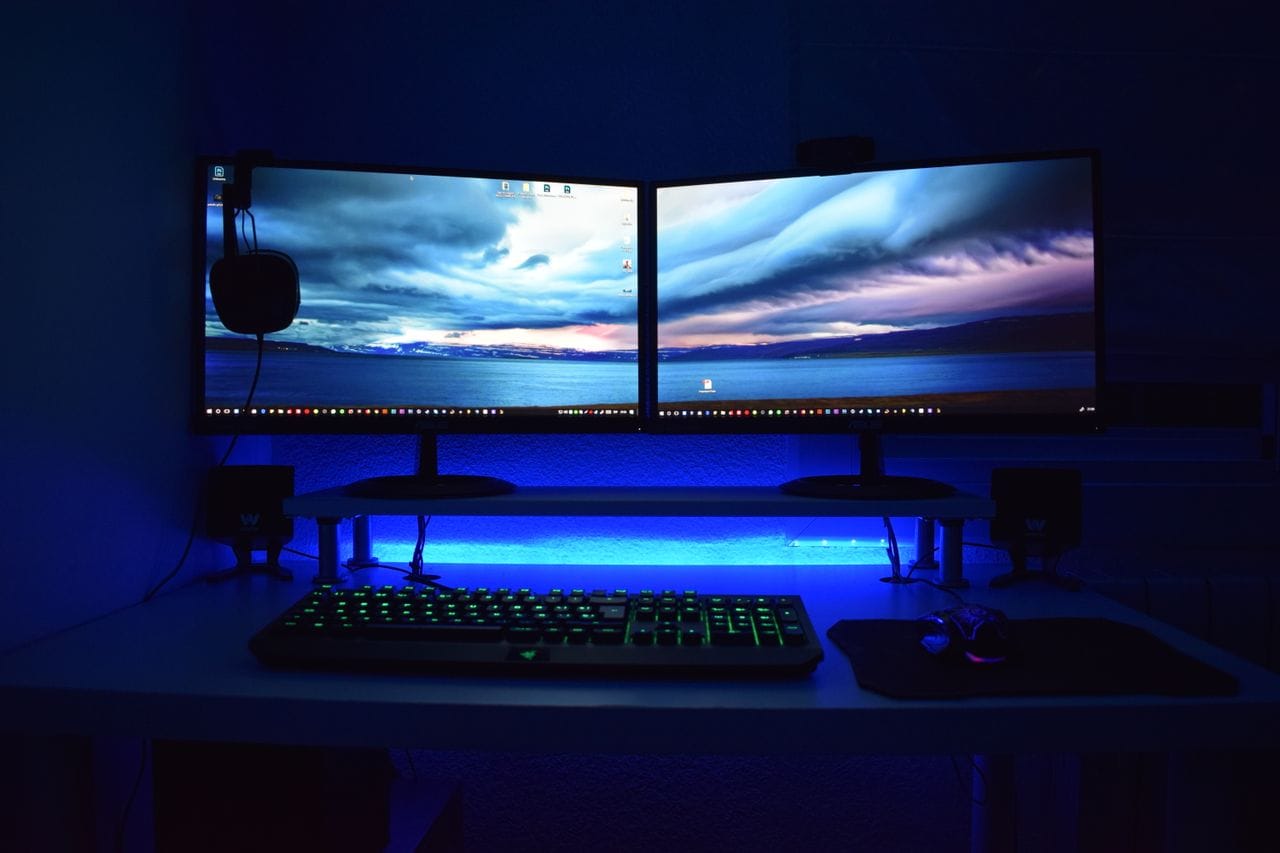
If you've only ever worked on a laptop screen, adding a second monitor feels like a small thing. Then you try it, and you wonder how you ever worked without it.
One screen for your main work, one for everything else — notes, email, a video call, a document you're copying from. Less switching tabs. Less squinting. Less losing your place every five minutes.
The good news is, most Windows laptops can do this. The annoying part is, it's not always as simple as plugging two cables in and hoping for the best. Ports are different, cables are different, and Windows sometimes decides to do the opposite of what you wanted.
This guide walks through the whole thing, in order, including the parts where it usually goes wrong.
First, check what your laptop can actually do
Before you buy a cable or a dock, take two minutes to check this, because it saves a lot of frustration later.
Look at the sides of your laptop. What ports do you actually have?
Most laptops will have some mix of these:
- HDMI — the most common one, usually fine for one monitor
- USB-C — but not all USB-C ports are the same, and this is where people get caught out
- Thunderbolt — looks like USB-C, usually marked with a small lightning symbol
- DisplayPort — less common on laptops, more common on docks
Here's the thing people miss: a USB-C port that only charges your laptop will not run a monitor, no matter what cable you use. For video, that port needs to support DisplayPort Alt Mode, or Thunderbolt. If you're not sure, check your laptop's specs on the manufacturer's website and search for "external displays" or "DisplayPort" for your exact model. It will usually say something like "supports up to two external displays" or "supports one external display." Believe that number. It's not a suggestion, it's a limit of the graphics in the laptop.
Also check your monitors. What inputs do they have — HDMI, DisplayPort, USB-C? You don't need matching monitors, by the way. Two different sizes and brands work fine together, as long as you can connect them both. It just looks a bit less tidy, which is fine.
The three ways to connect two monitors
There isn't one right way. It depends on what ports you have and how much you want to spend.
1. Straight into the laptop
If your laptop has two video outputs — say, one HDMI and one USB-C that supports video — you can plug one monitor into each. No extra hardware needed. This is the cheapest way, and for a lot of people it's all they need.
The downside is cables everywhere, and you have to unplug everything every time you take the laptop somewhere.
2. Through a USB-C hub
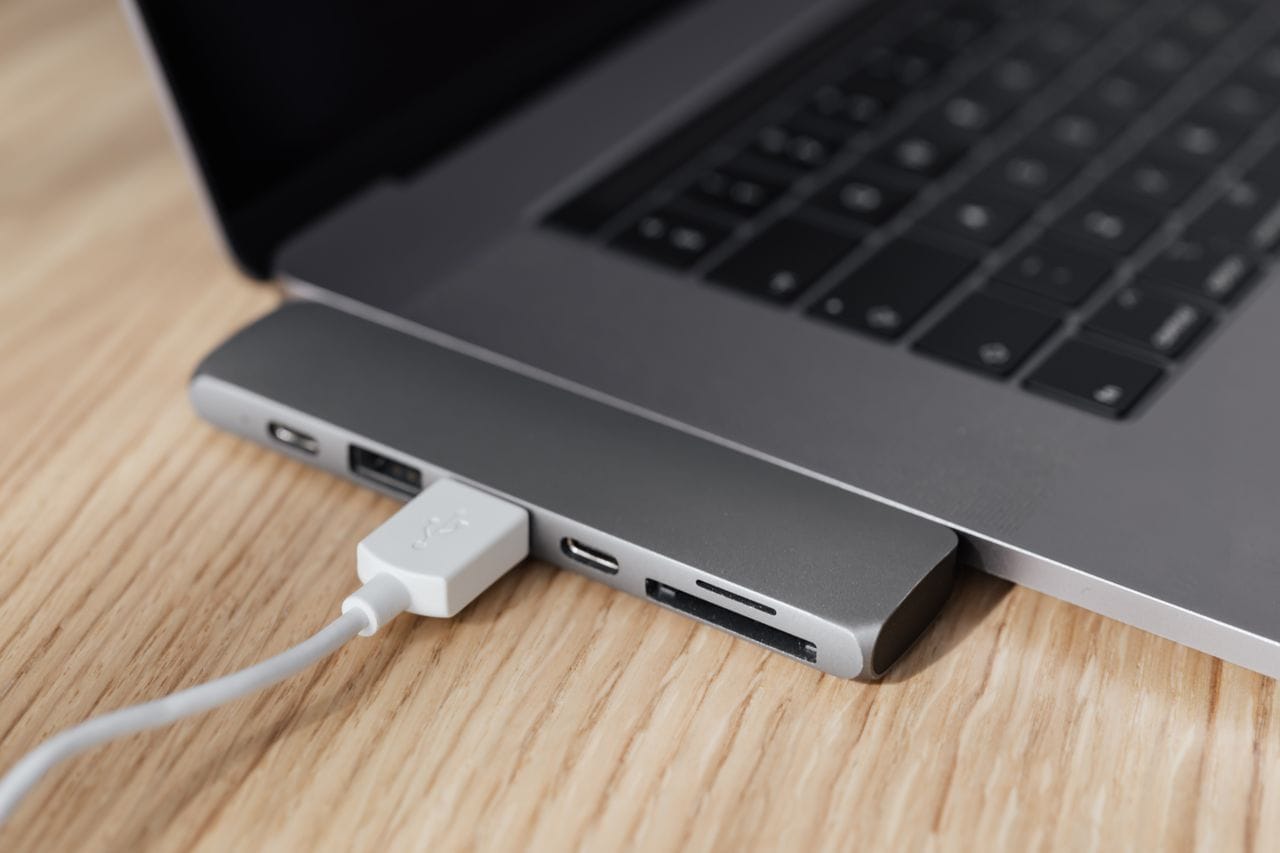
A hub is a small adapter with a few ports on it. You plug the hub into one USB-C port on your laptop, then plug both monitors into the hub.
This works well if your laptop's USB-C port supports video and has enough bandwidth for two monitors. It doesn't always, especially at high resolutions. If you're running two 1080p monitors, a decent hub usually handles it. Two 4K monitors at high refresh rates is a different story — that's where a hub starts to struggle.
Also, be careful with the cable between the hub and the laptop. A cheap charging-only USB-C cable will not carry video. Use the cable that came with the hub, or one that's specifically rated for video.
3. Through a docking station
A dock is the bigger, tidier version of a hub. You plug one cable from the dock into your laptop, and everything else — monitors, keyboard, mouse, charger, ethernet — stays plugged into the dock. When you sit down, you plug in one cable and you're set. When you leave, you unplug one cable and go.
A dock makes the most sense if you use the same desk every day and you want a clean setup. It costs more than a hub, and you need to make sure the dock actually supports two monitors at the resolution you want, not just one. We'll get into docks properly in a separate guide, because there's a lot to get wrong there.
For now, just pick the method that fits your laptop and your desk. You can always start with direct cables and move to a dock later.
Connect everything, then set it up in Windows
Plug both monitors in, turn them on, and make sure each one is set to the right input — HDMI 1, DisplayPort, USB-C, whatever you plugged into. Monitors are good at sitting on the wrong input and looking dead, so check this first before you assume something is broken.
Then, on your laptop:
Right-click on the desktop and choose Display settings. Or go to Settings > System > Display. Same place.
You should see boxes for your displays, numbered 1, 2, and 3. One is your laptop screen, the other two are your monitors. If you only see one or two, click Detect. If Windows still can't see a monitor, don't keep clicking — jump down to the troubleshooting section below, because something else is going on.
Once all three are showing, here's what to set:
Extend, not duplicate. In the dropdown that says how to use these displays, choose Extend these displays. Duplicate just shows the same thing on every screen, which defeats the whole point. Extend gives you one big workspace across all of them.
Arrange them to match your desk. Drag the boxes around so they sit in the same order as your physical monitors. If your second monitor is on the left in real life but on the right in Windows, your mouse will jump to the wrong side every time and drive you mad. Click Identify if you're not sure which number is which — Windows will flash a big number on each screen.
Pick your main display. Click on the monitor you want as your main one — usually the one directly in front of you — and tick Make this my main display. That's where your taskbar and new windows will open by default.
Set the resolution. For each monitor, choose its native resolution, which is usually the recommended one Windows shows you. If text looks blurry or too small, that's often a scaling issue, not a resolution issue. Try Scale at 100% first, then 125% if text is too small to read comfortably. If you have two monitors at different sizes, you may need different scaling on each — that's normal, and Windows lets you set it per monitor.
Check the refresh rate. Under Advanced display settings, you can see what refresh rate each monitor is running at. Most monitors are 60Hz, some are higher. If your monitor supports 120Hz or 144Hz and Windows is showing 60Hz, change it here. It makes scrolling and moving windows feel noticeably smoother.
That's it for the basic setup. Take a minute to drag a window from one screen to the other and make sure it moves the way you expect. If it jumps the wrong way, your arrangement is backwards — just drag the boxes again.
Using it day to day
A few things that make life easier once it's set up:
If you close your laptop lid and everything goes black, that's Windows trying to be helpful. Go to Settings > System > Power and look for the lid setting, or search for "Choose what closing the lid does" in the Start menu, and set it to Do nothing when plugged in. Then you can close the lid and keep working on your two monitors.
If you want to quickly switch between using just the laptop screen and your full setup, press Windows + P. That brings up the project menu — PC screen only, Duplicate, Extend, Second screen only. Extend is the one you want for normal work.
And if your audio suddenly starts coming out of a monitor speaker instead of your headphones, that's also normal. Go to Settings > System > Sound and pick your output device again. Windows sometimes switches audio to the last monitor you plugged in.
When it doesn't work — the usual problems
Most two-monitor problems are one of these. Work through them in order, and you'll find it faster than reinstalling drivers at random.
Windows can't see the second monitor at all.
Check the monitor's input source first. Then check the cable is fully plugged in at both ends. Then try a different port, or a different cable if you have one. Then press Windows + P and make sure it's set to Extend, not PC screen only. Then restart the laptop with everything still plugged in. That last one fixes more than it should.
The second monitor is detected, but it's black.
Again, check the input source on the monitor. Some monitors have an auto-detect that's slow or unreliable. Manually select HDMI or DisplayPort. If that doesn't work, try lowering the resolution for that monitor in Display settings, then raising it back up.
The resolution is wrong, or text looks blurry.
Set the monitor to its native resolution, the one Windows marks as recommended. If text is blurry on one monitor but sharp on the other, it's usually scaling. Set scaling per monitor — don't try to force both to the same percentage if they're different sizes.
The screen flickers, or cuts out sometimes.
This is usually a cable or bandwidth problem. A cheap or very long cable, or a hub trying to push two high-resolution monitors through one USB-C port, will flicker under load. Try a shorter, better cable first. If you're using a hub and it only flickers when both monitors are at high resolution, the hub may be the limit, not the laptop.
Your laptop only runs one external monitor, not two.
This is the hard limit we talked about at the start. Some laptops, especially thinner or older ones, only support one external display, even if they have two ports. A dock won't fix that — it's the graphics chip, not the port. In that case, your options are to use the laptop screen plus one external monitor, or to look at a DisplayLink dock, which uses software to drive a second monitor. DisplayLink works, but it's not the same as a native connection, and it's worth reading up on before you buy one.
Everything works, but it's laggy or stuttery.
Update your graphics drivers from the laptop manufacturer's website, not just from Windows Update — manufacturers often have newer versions. Also check that you're not running both monitors at a resolution and refresh rate your laptop can't comfortably handle. Dropping from 4K to 1440p on a second monitor is a perfectly reasonable trade-off if it makes everything smooth again.
Do you actually need a dock?
Honestly, for a lot of people, no. If you only use your desk sometimes, or you don't mind plugging in two cables, direct connection is fine and it's free.
A dock is worth it when you sit at the same desk every day, you hate cables, and you want one plug to connect everything — monitors, charger, keyboard, mouse, and whatever else. It's a convenience purchase, not a necessity, and it's only worth it if the dock you buy actually supports your monitors at the resolution you use. That's a whole guide on its own, and we'll cover it next.
For now, get two monitors working first. Once you know what your laptop can do and what setup you actually like using, choosing a dock — if you even need one — becomes a lot easier.