
USB-C vs Thunderbolt: What's the Difference, and Which Port Do You Actually Have?

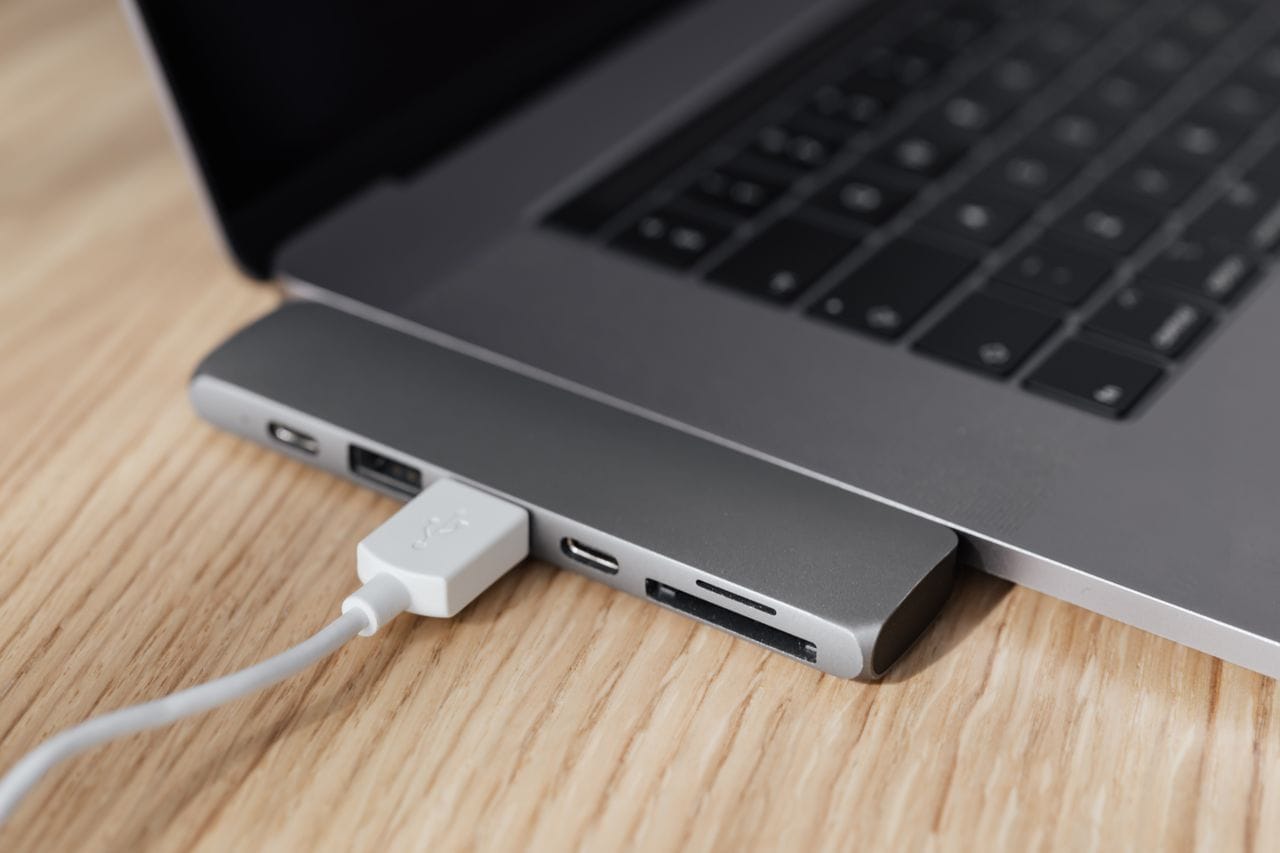
Here's a frustrating fact: the port on the side of your laptop might look exactly the same as the port on someone else's laptop, and do completely different things.
That's USB-C and Thunderbolt. Same shape, same small oval connector, very different abilities. And because they look identical, a lot of people buy the wrong cable, the wrong hub, or the wrong dock — then blame the product, when the real problem was the port all along.
Let's clear it up properly, without the spec-sheet nonsense.
First, USB-C is a shape, not a speed
This is the part that trips almost everyone up.
USB-C is just the shape of the connector. That little oval plug. It tells you nothing on its own about how fast it is, whether it can run a monitor, or how much power it can deliver.
Think of it like a plug socket. The shape of the socket doesn't tell you how much power is behind it. You have to check what's wired up to it.
A USB-C port on a laptop could be any of these, and manufacturers don't always make it obvious:
- Just for charging and slow data — no video at all
- USB 3.2 — decent data speed, and maybe video if it supports DisplayPort
- USB4 — much faster, and usually supports video
- Thunderbolt 3 or 4 — the fastest, most capable version
Same plug. Four very different ports. That's why "it has USB-C" is not a useful answer on its own.
So what is Thunderbolt, then?
Thunderbolt is also USB-C shaped, but it's a stricter, more capable standard, made by Intel.
In plain terms, Thunderbolt guarantees a few things that regular USB-C does not:
- It can run monitors, including two 4K monitors in most cases
- It can move data very fast — up to 40 gigabits per second on Thunderbolt 3 and 4
- It can charge a laptop, usually at a decent wattage
- It can daisy-chain devices, so you can plug one thing into another in a line, instead of needing a separate port for everything
Regular USB-C can do some of those things, but only if the manufacturer chose to include them. Thunderbolt has to do them to be called Thunderbolt. That's the real difference — it's not just faster, it's more predictable.
Thunderbolt 4 is the newer version you'll see on most current Windows laptops. Compared to Thunderbolt 3, it's mostly about stricter minimums: it has to support two 4K monitors or one 8K monitor, it has to be able to wake a computer from sleep, and it has to offer at least a certain amount of charging power. In daily use, if you have Thunderbolt 4, you're in good shape for almost any desk setup.
Thunderbolt 3 is older but still very capable. For most office work, dual monitors, and external drives, you won't notice a huge difference between 3 and 4.
How to tell which one you have
Don't guess from the shape. Look for the little symbol next to the port, if there is one.
- A lightning bolt means Thunderbolt. That's the easiest tell.
- A D or DisplayPort symbol — it looks like a P with a line through it — means that port can output video.
- SS or a USB trident symbol usually means a regular USB port, often without video. SS stands for SuperSpeed, which is about data, not monitors.
- Sometimes there's no symbol at all. That's annoying, and it's more common than it should be.
If there's no symbol, check your laptop's specs. Go to the manufacturer's website, find your exact model — not just "Dell XPS" or "Lenovo ThinkPad," the full model number — and look for the ports section. It should say something like "2x Thunderbolt 4" or "1x USB-C 3.2 with DisplayPort." If it just says "USB-C" with no extra detail, assume it does the minimum until you prove otherwise.
You can also check in Windows. Open Device Manager, look under System devices, and see if there's a Thunderbolt controller listed. If there is, you have Thunderbolt. If there isn't, you probably don't — though this isn't perfect, so the manufacturer's specs are still the best source.
What each one can actually do in real life
Forget the numbers for a second. Here's what it means at your desk.
If you have a basic USB-C port, with no video:
You can charge your laptop and plug in a mouse, keyboard, or a regular USB drive. You cannot plug a monitor directly into that port. You'd need a different port for video, or a special adapter that uses software to drive a monitor, which is a workaround, not a proper solution.
If you have USB-C with DisplayPort support:
You can run one external monitor from that port, usually at good resolution. Two monitors is possible in some cases, but it depends on the laptop and the hub or dock you're using. This is where people get stuck — they buy a dual-monitor dock, plug it into a USB-C port that only supports one monitor, and wonder why the second screen stays black.
If you have USB4:
You're in much better territory. USB4 is close to Thunderbolt 3 in capability, and most USB4 ports will run two monitors and fast external storage without much fuss. Not all USB4 ports are identical, but they're generally a safe bet for a normal desk setup.
If you have Thunderbolt 3 or 4:
This is the most flexible option. Dual monitors, fast external SSDs, a full docking station with everything plugged in, all through one cable. If you're building a proper desk setup and you want it to just work, Thunderbolt is the port you want to be using.
The cable matters just as much as the port
This is the second trap, and it's just as common.
A Thunderbolt port with a cheap USB-C charging cable will not give you Thunderbolt speeds or video. The cable has to support it too.
- A cable that came in the box with a phone charger is usually charging-only, or very slow data. It will not run a monitor.
- A cable that came with a dock, a monitor, or a Thunderbolt device is usually rated for what that device needs. Use that cable.
- If you're buying a cable separately, look for what it actually says it supports — Thunderbolt 4, USB4, DisplayPort video, and the power wattage — not just "USB-C cable." A cable that doesn't mention video almost certainly doesn't do video.
As a rule: if a setup isn't working and the port should support it, try a different cable before you blame the dock or the monitor. Cables are the cheapest part to swap, and they're the cause more often than people expect.
Which one do you actually need?
Honestly, it depends on what you do at your desk.
If you mostly work on the laptop screen, charge your phone, and occasionally plug in a USB drive, any USB-C port is fine. You don't need Thunderbolt, and you shouldn't pay extra for it.
If you run one external monitor and a few accessories, USB-C with DisplayPort, or USB4, is usually enough. You don't need a Thunderbolt dock for that.
If you run two monitors, especially at high resolution, and you want one cable to connect everything — monitors, charger, keyboard, mouse, external drive — then Thunderbolt makes a real difference. It's not just faster, it's the difference between a setup that works reliably and one that works sometimes, depending on the hub.
And if you're editing video, moving large files to an external SSD regularly, or using a high-end monitor, Thunderbolt's speed is actually useful, not just a number on a box.
The mistake is buying a Thunderbolt dock for a laptop that doesn't have Thunderbolt, or buying a basic hub and expecting it to run two 4K monitors. Match the dock or hub to the port you actually have, not the port you wish you had.
The short version
USB-C is the shape of the plug. Thunderbolt is a stricter, more capable version of what's behind that plug.
Check the symbol next to the port, check your exact model's specs, and check the cable — those three things will tell you more than any marketing page will.
Once you know what port you have, everything else gets easier: which cable to buy, whether a hub will be enough, and whether a dock is worth it. That's the whole point of knowing this stuff in the first place — not to memorise specs, but to stop buying the wrong thing.